

- Global (Global Config sidebar): Full tree editor with categories, detail panels, weapon/armor categories, and combat style selection.
- Per-world (World/Instance sidebar): Simplified view with ON/OFF toggles only. No detail editing - just enable or disable individual rules or entire categories.
Global Mob Rules Editor
When editing mob rules from the Global Config sidebar section, you have full access to the tree explorer and detail panels.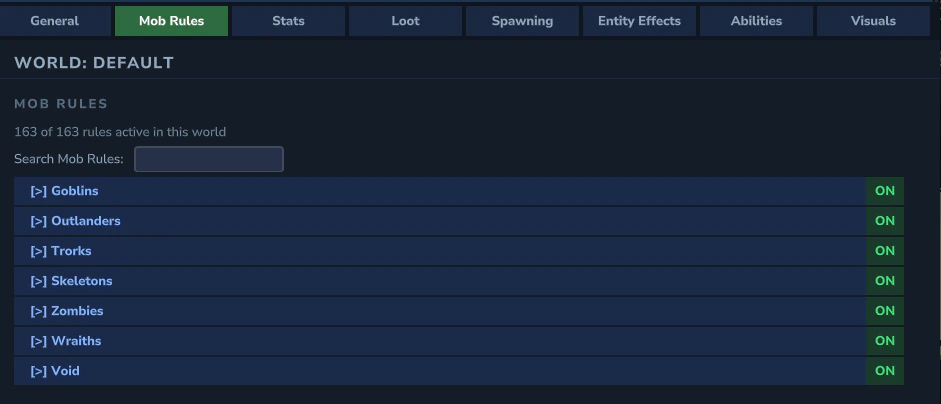
Tree Explorer
- Categories shown in blue - click to navigate into. Prefixed with
[>] - Items shown in green - click to expand the detail panel below
- Search filter - type to search all mob rules across all categories (flattens the tree)
- Back/Forward navigation history for browsing categories
- Breadcrumb bar showing current location in the tree
Mob Rule Detail Panel
Clicking a mob rule item expands a detail panel below it: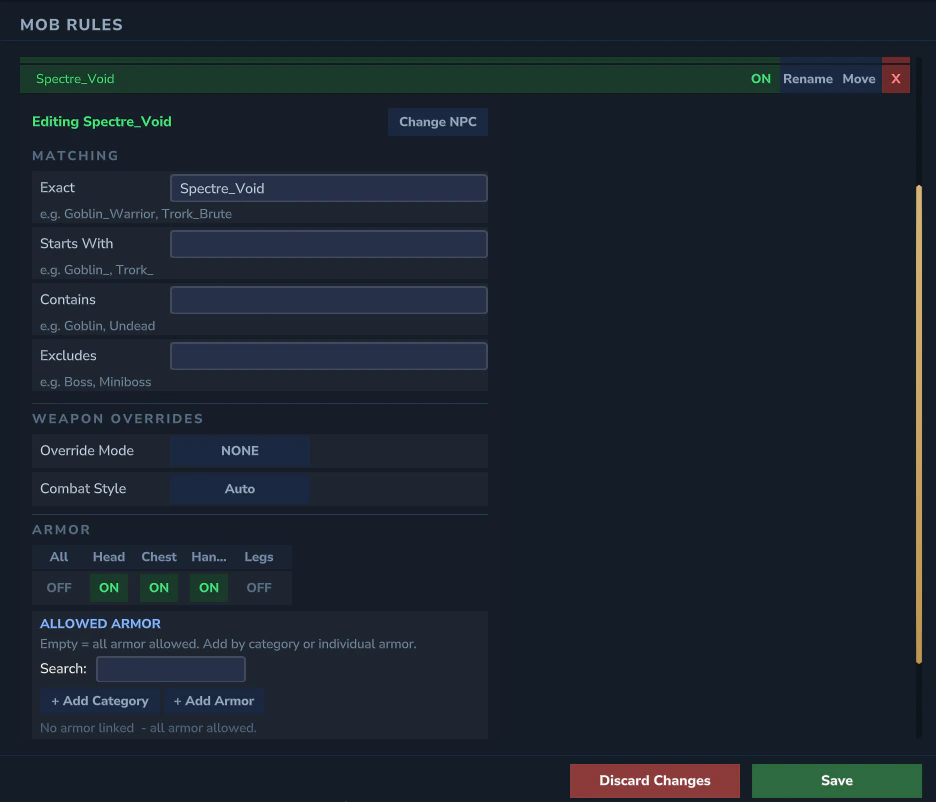
- Enabled toggle
- Match patterns - exact, prefix, contains, and excludes lists
- Weapon Override Mode - cycle between ALWAYS, ONLY_IF_EMPTY, NONE
- Per-tier weapon override toggles (T1 - T5)
- Weapon category links - click
[>]to peek at category contents - Armor category links
- Armor slot restrictions - control which armor slots the mob can equip
- Combat style selector - assign a combat style (Disciplined, Berserker, Tactical, Chaotic) to this mob rule. This determines the CAE behavior profile used for basic attacks, guard timing, and movement patterns. See Combat AI for details on each style.
- Change NPC button - opens the NPC picker to rebind the rule to a different NPC
Adding Mob Rules
Click [+ Add Mob Rule] to open the NPC picker. NPCs that already have mob rules are automatically excluded from the list. You can also enter a custom ID for non-standard NPCs.Adding Categories
Click [+ Add Category] to create a new sub-category within the current category. Categories help organize mob rules into logical groups (e.g., Goblins, Skeletons, Undead).Rename & Move
Each tree row has Rename and Move buttons:- Rename opens a text popup to change the item or category name
- Move opens a category browser to relocate the item to a different category
Per-World Mob Rules
When viewing mob rules from a World or Instance sidebar entry, the tab shows a simplified view focused on enabling or disabling rules for that specific world.ON/OFF Toggle View
Each mob rule appears as a row with an ON/OFF toggle. No detail panel is shown - per-world overlays only control whether a rule is active in that world, not its configuration.- Individual toggles - enable or disable specific mob rules
- Category bulk toggle - toggling a category ON/OFF applies to all rules within it
- Summary counter - shows how many rules are enabled vs. total (e.g., “142 / 200 enabled”)
Global OFF Indicator
If a mob rule is disabled at the global level, the per-world row shows a “Global OFF” indicator. Per-world toggles cannot override a globally disabled rule - the rule must be re-enabled globally first.Search Filter
The same search filter is available in per-world view. Type to search across all categories. Filter results show flat rows with ON/OFF toggles. YAML reference: See Mobs for the underlyingmobrules.yml fields.