> ## Documentation Index
> Fetch the complete documentation index at: https://docs.rpgmobs.frotty27.com/llms.txt
> Use this file to discover all available pages before exploring further.
# Admin UI Overview
> In-game configuration interface for RPGMobs.
RPGMobs includes a full in-game Admin UI for managing all configuration without editing YAML files. Every setting from the 9 base config files and all per-world/instance overlays can be viewed and edited visually.
## Opening the Admin UI
```
/rpgmobs config
```
Requires the `rpgmobs.config` permission. The Admin UI opens as a full-screen panel.
 ## Sidebar Navigation
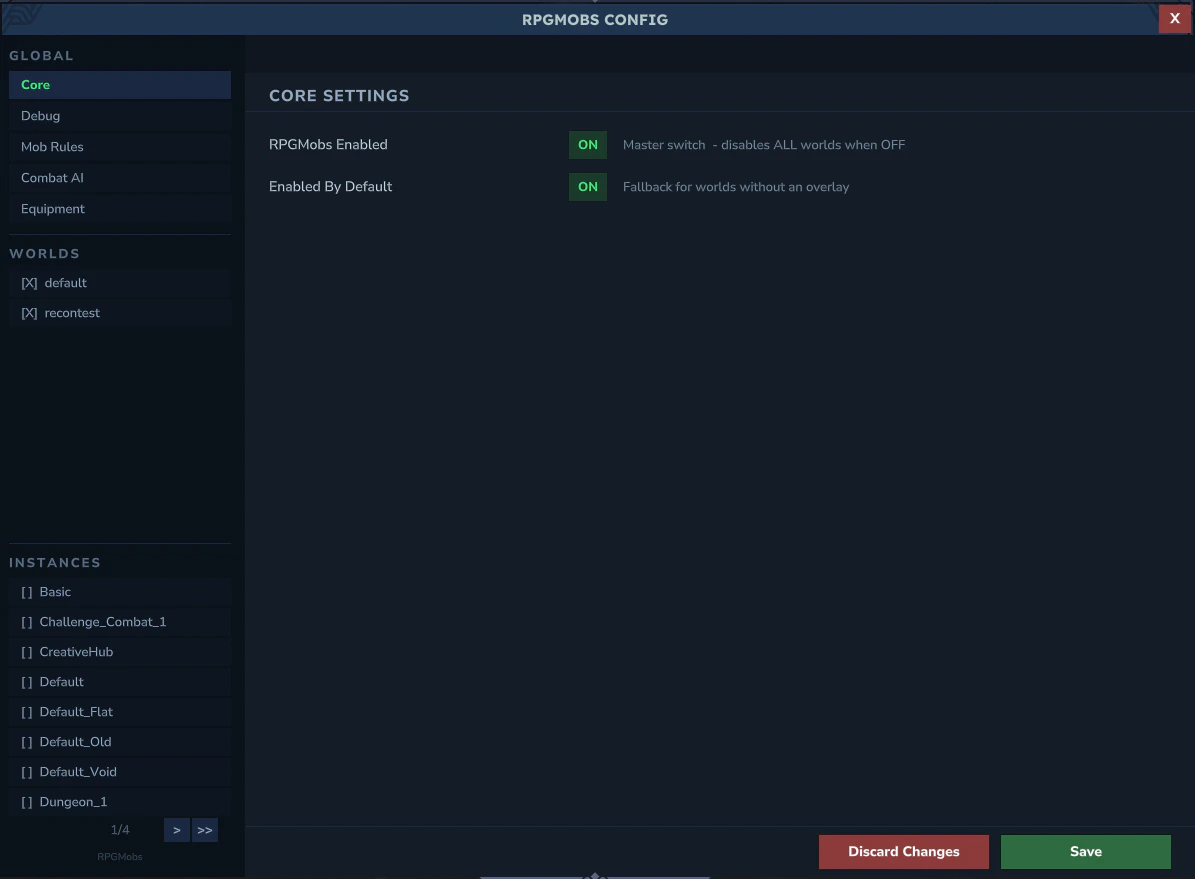
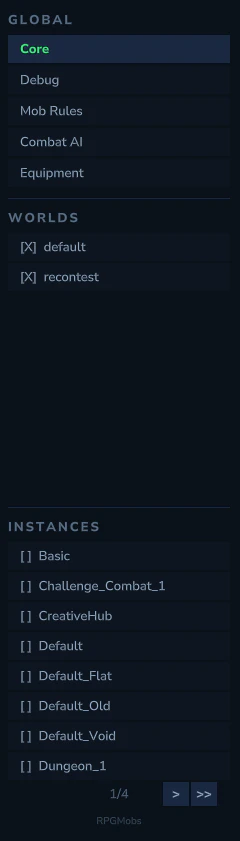
The left sidebar has 4 sections:
| Section | What it shows |
| :------------------------ | :------------------------------------------------------------------------------------ |
| **Global Core** | Base config settings shared across all worlds (weapon/armor categories, rarity rules) |
| **Global Debug** | Debug mode toggle and mob rule scan interval |
| **Per-World Overlays** | One entry per world - click to edit that world's overlay |
| **Per-Instance Overlays** | One entry per instance template - click to edit that instance's overlay |
Selecting a world or instance loads its overlay for editing. When you switch to a different world, your pending edits are automatically stashed and restored when you return.
## Sidebar Navigation
The left sidebar has 4 sections:
| Section | What it shows |
| :------------------------ | :------------------------------------------------------------------------------------ |
| **Global Core** | Base config settings shared across all worlds (weapon/armor categories, rarity rules) |
| **Global Debug** | Debug mode toggle and mob rule scan interval |
| **Per-World Overlays** | One entry per world - click to edit that world's overlay |
| **Per-Instance Overlays** | One entry per instance template - click to edit that instance's overlay |
Selecting a world or instance loads its overlay for editing. When you switch to a different world, your pending edits are automatically stashed and restored when you return.
 ## Sub-Tabs
Each world/instance overlay has 8 sub-tabs. Click through to each page for details:
| Tab | Content | Page |
| :----------------- | :-------------------------------------------------------------------------------------------- | :----------------------------------- |
| **General** | Enabled toggle, RPGLeveling/XP settings, Elite Behavior toggles, Preset selector | [General](/ui/general) |
| **Mob Rules** | Per-world mob rule tree with detail panel, NPC picker | [Mob Rules](/ui/mob-rules) |
| **Stats** | Health and damage multipliers per tier, random variance | [Stats](/ui/stats) |
| **Loot** | Loot template tree, drop rules with per-tier toggles, item picker | [Loot](/ui/loot) |
| **Spawning** | Progression style, spawn chances, tier restrictions, environment tier rules, distance bonuses | [Spawning](/ui/spawning) |
| **Entity Effects** | Effect tree with per-tier toggles and multipliers | [Entity Effects](/ui/entity-effects) |
| **Abilities** | Auto-discovered abilities with per-entry tier toggles | [Abilities](/ui/abilities) |
| **Visuals** | Nameplates, model scaling, family prefixes | [Visuals](/ui/visuals) |
## Global Config
When selecting **Global Core** in the sidebar, 3 sub-tabs appear for managing equipment configuration that applies to all worlds. See [Global Config](/ui/global-config) for details.
## Save & Discard
* **Yellow markers** indicate unsaved changes (current state vs. what is on disk)
* **Green markers** indicate changes from the applied template/base
* **Save** writes ALL pending overlays (including stashed ones from other worlds), not just the active one
* **Discard** reverts to the last saved state, preserving UI navigation (tree position, expanded panels, pages)
## Popups
### NPC Picker
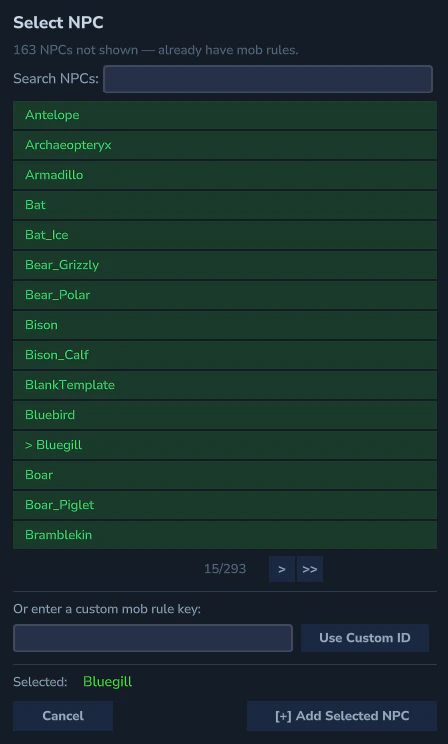
Modal popup for selecting NPC role IDs. Includes search filtering, pagination, and a custom ID entry field for non-standard NPCs. NPCs already used in the current context are automatically excluded.
## Sub-Tabs
Each world/instance overlay has 8 sub-tabs. Click through to each page for details:
| Tab | Content | Page |
| :----------------- | :-------------------------------------------------------------------------------------------- | :----------------------------------- |
| **General** | Enabled toggle, RPGLeveling/XP settings, Elite Behavior toggles, Preset selector | [General](/ui/general) |
| **Mob Rules** | Per-world mob rule tree with detail panel, NPC picker | [Mob Rules](/ui/mob-rules) |
| **Stats** | Health and damage multipliers per tier, random variance | [Stats](/ui/stats) |
| **Loot** | Loot template tree, drop rules with per-tier toggles, item picker | [Loot](/ui/loot) |
| **Spawning** | Progression style, spawn chances, tier restrictions, environment tier rules, distance bonuses | [Spawning](/ui/spawning) |
| **Entity Effects** | Effect tree with per-tier toggles and multipliers | [Entity Effects](/ui/entity-effects) |
| **Abilities** | Auto-discovered abilities with per-entry tier toggles | [Abilities](/ui/abilities) |
| **Visuals** | Nameplates, model scaling, family prefixes | [Visuals](/ui/visuals) |
## Global Config
When selecting **Global Core** in the sidebar, 3 sub-tabs appear for managing equipment configuration that applies to all worlds. See [Global Config](/ui/global-config) for details.
## Save & Discard
* **Yellow markers** indicate unsaved changes (current state vs. what is on disk)
* **Green markers** indicate changes from the applied template/base
* **Save** writes ALL pending overlays (including stashed ones from other worlds), not just the active one
* **Discard** reverts to the last saved state, preserving UI navigation (tree position, expanded panels, pages)
## Popups
### NPC Picker
Modal popup for selecting NPC role IDs. Includes search filtering, pagination, and a custom ID entry field for non-standard NPCs. NPCs already used in the current context are automatically excluded.
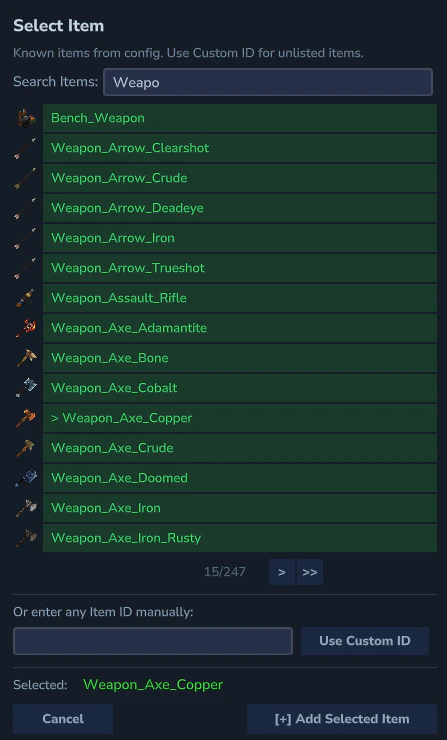
 ### Item Picker
Modal popup for selecting item IDs with item icon previews. Includes search filtering, pagination, and a custom ID entry field.
### Item Picker
Modal popup for selecting item IDs with item icon previews. Includes search filtering, pagination, and a custom ID entry field.
 ### Rename Popup
Text field for renaming tree items or categories.
### Move Popup
Breadcrumb-navigated category selector for moving items between categories. Prevents moving a category into itself or its descendants.
### Category Peek
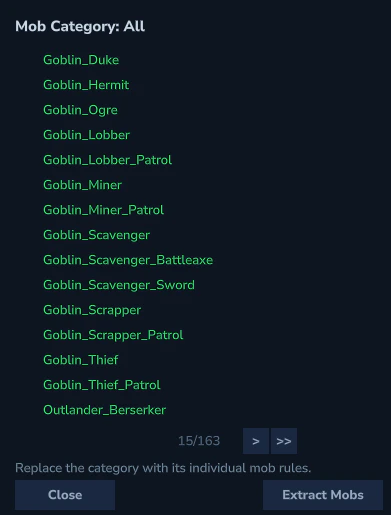
View the contents of a category without navigating to it. Appears when clicking `[>]` on category references in ability linked mobs, loot template linked mobs, or weapon/armor category links.
### Rename Popup
Text field for renaming tree items or categories.
### Move Popup
Breadcrumb-navigated category selector for moving items between categories. Prevents moving a category into itself or its descendants.
### Category Peek
View the contents of a category without navigating to it. Appears when clicking `[>]` on category references in ability linked mobs, loot template linked mobs, or weapon/armor category links.